
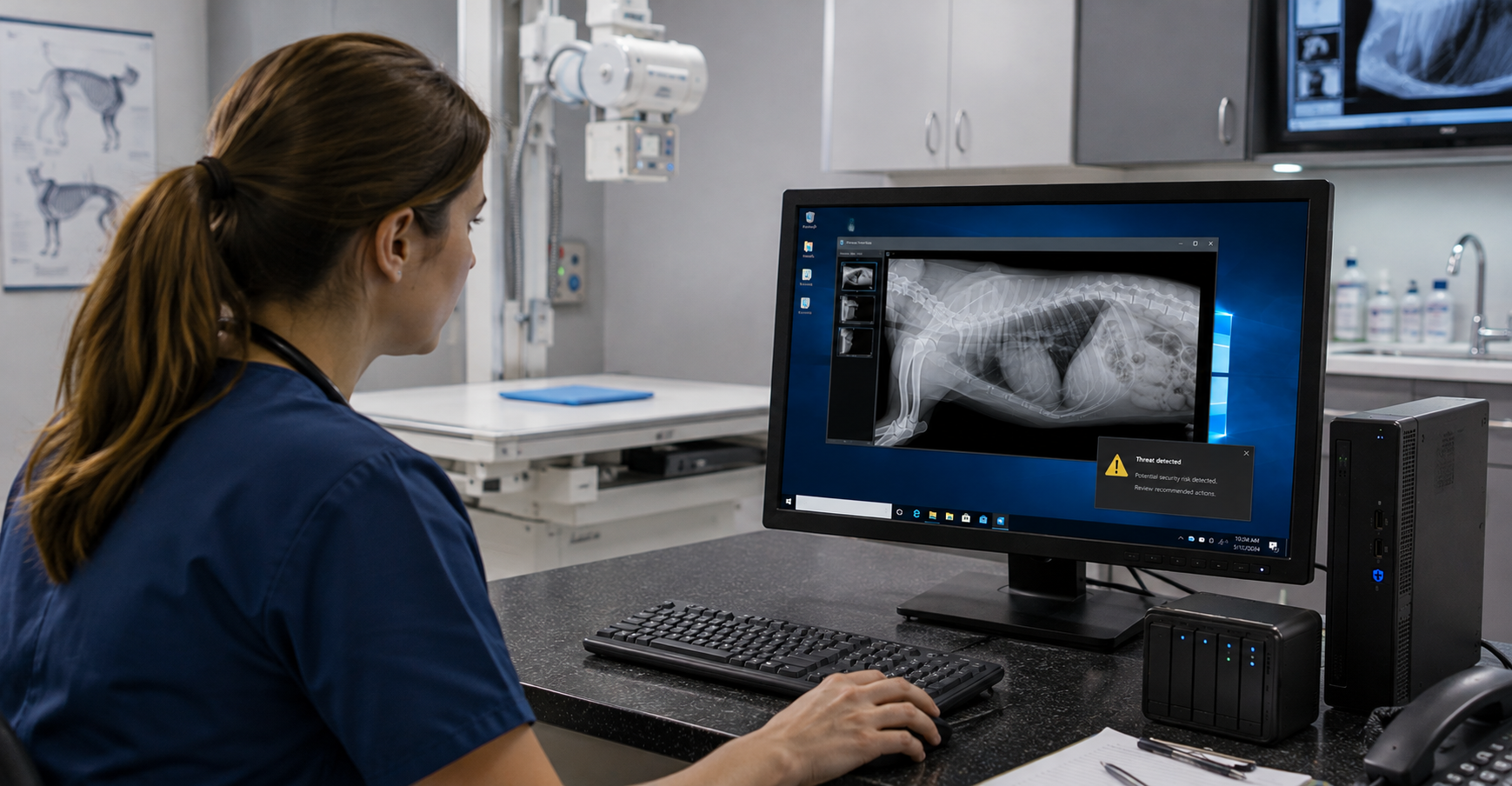
The front desk PCs were replaced last year. The practice management software moved to the cloud. But in the corner of the treatment area, the computer that runs your digital X-ray system is still on Windows 10. It works fine, the imaging vendor never mentioned an upgrade, and nobody wants to touch it.
That computer may now be one of the biggest security risks in your clinic. Here’s what changed, what it costs to stay on Windows 10 and what to do about the machines you can’t upgrade yet.
The Quick Answer
Microsoft ended standard support for Windows 10 on October 14, 2025. Business PCs can continue receiving eligible security updates through Microsoft’s paid commercial Extended Security Updates (ESU) program. As of November 2026, Year 2 coverage runs until October 12, 2027 and costs $122 per device, on top of the $61 Year 1 fee. Clinics enrolling for the first time now must purchase both years, bringing the total to $183 per device. Veterinary practices should identify every Windows 10 machine, particularly imaging and lab workstations, confirm its exact Windows edition, and decide whether to upgrade, replace, enroll in ESU or isolate it from the wider network.
What Changed, and When
- October 14, 2025: Standard Windows 10 support ended. Windows 10 PCs keep working, but standard security updates and technical support stopped.
- Year 1 of commercial ESU (October 15, 2025 – October 13, 2026): $61 per device. This year has now ended.
- Year 2 of commercial ESU (October 14, 2026 – October 12, 2027): $122 per device. Coverage is cumulative, so a clinic enrolling for the first time now pays for Year 1 and Year 2: $183 per device.
- Year 3 of commercial ESU (October 13, 2027 – October 10, 2028): $244 per device. All three years together total $427 per device. After that, there are no more Windows 10 security updates for business PCs.
| Commercial ESU coverage | Price per device |
| Year 1 | $61 |
| Year 2 | $122 |
| Year 1 + Year 2 (first-time enrollment now) | $183 |
| Year 3 | $244 |
| All three years | $427 |
Don’t confuse consumer ESU with commercial ESU. Microsoft also runs a separate consumer ESU program that provides eligible personal devices with security updates through October 12, 2027. Consumer enrollment has its own eligibility rules and payment options, and it doesn’t apply to business PCs. Veterinary clinics using business devices should check their eligibility for Microsoft’s commercial ESU program rather than assume consumer coverage applies.
To qualify for this commercial ESU program, a PC must be running Windows 10 version 22H2. ESU is included at no extra cost for Windows 10 virtual machines running in Windows 365, Azure Virtual Desktop or Azure. Long-term editions of Windows 10 (LTSC and LTSB), which some imaging equipment uses, are not covered by this program; they follow their own lifecycles, explained below.
Why Imaging Workstations Are the Usual Holdouts
In many clinics, the last Windows 10 machines aren’t front-desk PCs. They’re the computers attached to diagnostic equipment:
- digital radiography (DR) and computed radiography (CR) acquisition workstations
- dental X-ray sensors and their software
- ultrasound review stations
- in-house lab analyzer interfaces
These machines are often supplied or configured by the equipment vendor, and the imaging software, device drivers and hardware need to work together. Patterson Veterinary’s Windows 11 guidance advises clinics to confirm compatibility with their software vendors and to check drivers for peripherals such as imaging sensors before upgrading.
The good news is that many current veterinary imaging products now list Windows 11 support. The only way to know for your equipment is to ask your vendor directly.
These workstations may store or process diagnostic images that form part of your clinic’s patient records. Georgia Board of Veterinary Medicine Rule 700-12-.04 requires veterinary facilities to retain patient records, including diagnostic imaging, for at least three years. That’s one reason veterinary imaging systems need the same IT protection as your front desk.
First, Check Which Windows 10 You Actually Have
Not every Windows 10 machine is in the same position. Some imaging and medical equipment ships with special long-term editions of Windows 10 (called LTSC, for Long-Term Servicing Channel) that have their own support dates:
| Windows edition | Security support end date | Paid extension option |
| Windows 10 Home / Pro / Enterprise 22H2 | October 14, 2025 | Commercial ESU (above) |
| Windows 10 Enterprise LTSB 2016 | October 13, 2026 | Separate ESU, up to three years |
| Windows 10 IoT Enterprise LTSB 2016 | October 13, 2026 | Separate ESU, through the device manufacturer only |
| Windows 10 Enterprise LTSC 2021 | January 12, 2027 | Separate ESU, through January 8, 2030 |
| Windows 10 Enterprise LTSC 2019 | January 9, 2029 | Not needed yet |
| Windows 10 IoT Enterprise LTSC 2019 | January 9, 2029 | Not needed yet |
| Windows 10 IoT Enterprise LTSC 2021 | January 13, 2032 | None (already supported to 2032) |
Important: The commercial Windows 10 ESU program described above applies only to eligible Windows 10 version 22H2 devices. LTSC and LTSB editions follow their own Microsoft support lifecycles and are not covered by it. Some of them have separate paid ESU options: Windows 10 Enterprise LTSB 2016 and Enterprise LTSC 2021 ESU is sold through volume licensing, while ESU for IoT Enterprise LTSB 2016 is available only through the device manufacturer. If your imaging workstation runs an IoT edition, contact the equipment vendor about update options.
Note that Windows 10 Enterprise LTSC 2021 loses support in January 2027, just two months away, while the IoT edition with almost the same name is supported until 2032. Confirm the exact edition before planning around a date.
How to check: On the workstation, open Settings > System > About and look at “Edition” and “Version.” Or ask your IT provider to pull a report across every machine in the clinic.
Your Three Options for Each Windows 10 Machine
Before you change anything: check with your imaging vendor. Imaging software may depend on specific operating system versions, and hardware drivers for detectors and sensors may not be certified for Windows 11. An unsupported upgrade could interrupt image capture or stop images transferring to your practice management system. Get written confirmation from your vendor before upgrading any workstation connected to diagnostic equipment.
Option 1: Upgrade or replace
If the imaging vendor confirms Windows 11 support and the PC meets Microsoft’s hardware requirements, upgrade it. If the hardware doesn’t qualify, replacing the workstation is often the better long-term choice. Coordinate the work with the vendor so the detector, drivers and image routing to your PIMS are retested before the next patient.
Option 2: Enroll in commercial ESU
If the vendor isn’t ready for Windows 11, ESU buys time. At $122 per device for Year 2, plus Year 1 if you haven’t already paid it, it’s a bridge, not a plan. Use the time to schedule the upgrade.
Option 3: Isolate what can’t be upgraded or covered
Some specialized equipment simply can’t move off an old operating system. In that case, reduce its exposure:
- Put the workstation on its own network segment, separate from staff PCs, guest Wi-Fi and payment systems.
- Block web browsing and email on that machine; it should only talk to the systems it needs, such as your PIMS or PACS.
- Remove unnecessary software and limit who can log in.
- Make sure its images are backed up and that you’ve tested restoring them.
- Document the exception and the plan to retire it.
Isolation reduces risk, but it doesn’t make an unpatched system safe. It’s a holding measure until the machine can be replaced.
A Quick Windows 10 Action Checklist
- List every computer in the clinic, including imaging, lab and treatment-area machines.
- Record each machine’s Windows edition and version.
- Ask each equipment and software vendor about Windows 11 support, in writing.
- Decide for each machine: upgrade, replace, ESU or isolate.
- Budget for replacements and ESU in your 2027 plan (see our guide to tech planning and budgeting).
- Retest imaging and lab connections to your PIMS after any change.
- Confirm backups of imaging data, and test a restore.
How Tier3MD Helps Veterinary Clinics Through the Transition
Tier3MD’s Veterinary IT Management supports animal hospitals and clinics across Georgia and the Southeast. For clinics still running Windows 10, that includes:
- Support for digital X-ray, imaging and lab equipment software, so upgrades don’t break the connection between your equipment and your records
- 24/7 network monitoring to keep an eye on older systems that can’t be upgraded yet
- Cybersecurity services, including ransomware protection and external vulnerability scanning
- Disaster recovery so imaging and patient records can be restored if something goes wrong
Frequently Asked Questions
Is Windows 10 still supported for veterinary clinics?
Not through standard support, which ended October 14, 2025. Business PCs can receive eligible security updates only through Microsoft’s paid commercial ESU program. Year 2 costs $122 per device, or $183 including the required Year 1 fee for first-time enrollment. Some specialized LTSC editions of Windows 10 have later support dates.
Doesn’t Microsoft’s extension to October 2027 cover us?
No. That date belongs to the separate consumer ESU program for eligible personal devices. Business devices, including veterinary clinic PCs, need commercial ESU.
Can we keep using our Windows 10 X-ray workstation?
It will keep working, but without security updates it becomes increasingly vulnerable. Check its exact Windows edition, ask your imaging vendor about Windows 11 support, and either upgrade it, enroll it in ESU or isolate it until it can be replaced.
How much does Windows 10 ESU cost for a business?
Commercial ESU costs $61 per device for Year 1, $122 for Year 2 and $244 for Year 3, or $427 for all three. It’s cumulative, so a clinic enrolling for the first time in Year 2 pays $183 per device to cover Years 1 and 2.
Will upgrading to Windows 11 break our imaging software?
It can if the software or drivers aren’t certified for Windows 11. Confirm compatibility with your vendor first, and retest image capture and image routing to your PIMS after the upgrade.
Don’t Let One Old Workstation Become Your Weakest Link
An X-ray workstation that quietly misses security updates can put your whole clinic’s network and records at risk. Tier3MD can help you find every Windows 10 machine, work through the options with your equipment vendors and keep your imaging running throughout.
Talk to Tier3MD about your Windows 10 machines. Call 855-698-4373 or email Info@Tier3MD.com. Not sure how ready your clinic is for an outage? Take our free 3-minute Disaster Recovery Readiness Assessment.